
Google Meet: The Smart Choice for Webinars
Understanding the Foundation: Google Meet for Webinars
While Google Meet doesn’t have a shiny \”webinar\” button, hosting a webinar on Google Meet is an entirely possible and powerful strategy once you learn to adapt its features. Think of it as a versatile tool that can handle everything from small training sessions to large corporate presentations. The key is leveraging its participant limits, recording capabilities, and interactive tools to create a professional webinar experience. If you ever need a deeper dive into a specific setting, Google’s own Help Center provides clear, up-to-date documentation you can reference at any time.
Key Differences Between a Meeting and a Webinar
It’s not about the technology; it’s about your approach. When you host a webinar, you shift from a collaborative meeting to a broadcast mindset.
- Format: A webinar is a one-to-many presentation, not a back-and-forth conversation. You are the presenter, and the audience is there to learn.
- Control: You maintain tight control over who can speak, share their screen, and join the session. This creates a focused environment for your message.
- Roles: The roles are clear. You and any co-hosts are presenters, while everyone else is an attendee who interacts through structured Q&A, polls, and chat.
- Purpose: Webinars often have a strategic goal, such as lead generation or building authority. This intent shapes the entire structure of your event.
Choosing the Right Google Workspace Plan for Your Needs
The beauty of Google Meet lies in its scalability, but you need the right plan for your goals. Don’t pay for features you won’t use, but don’t handicap yourself with a plan that’s too limited.
- Free Google Account: Good for testing, with up to 100 participants for 60 minutes. However, it lacks recording, Q&A, and polls.
- Business Starter: Offers 100 participants with no time limit, but still no recording capabilities\u2014a deal-breaker for most professional webinars.
- Business Standard: This is the sweet spot for many. You get 150 participants, recording, Q&A, and polls. This plan provides the core tools for a professional webinar.
- Business Plus: Increases capacity to 500 participants and adds attendance tracking, allowing you to gather valuable data on who attended and for how long.
- Enterprise: The top tier for large-scale events, supporting 1,000 interactive participants and live streaming for up to 100,000 viewers. This is for when you’re ready to reach a massive audience.
My advice is to start with a plan like Business Standard to test your strategy and scale up as your audience grows.
The Pre-Webinar Playbook: Scheduling, Promotion, and Preparation
The success of hosting a webinar on Google Meet is determined long before you go live. Proper planning is the foundation for a smooth and professional event.
Showtime! Mastering the Live Webinar Experience
The moment of truth has arrived! After all that preparation, it’s time to deliver a compelling live experience that keeps your audience engaged and coming back for more. Hosting a webinar on Google Meet during the live event requires mastering both the technical aspects and the human connection that makes virtual presentations memorable.
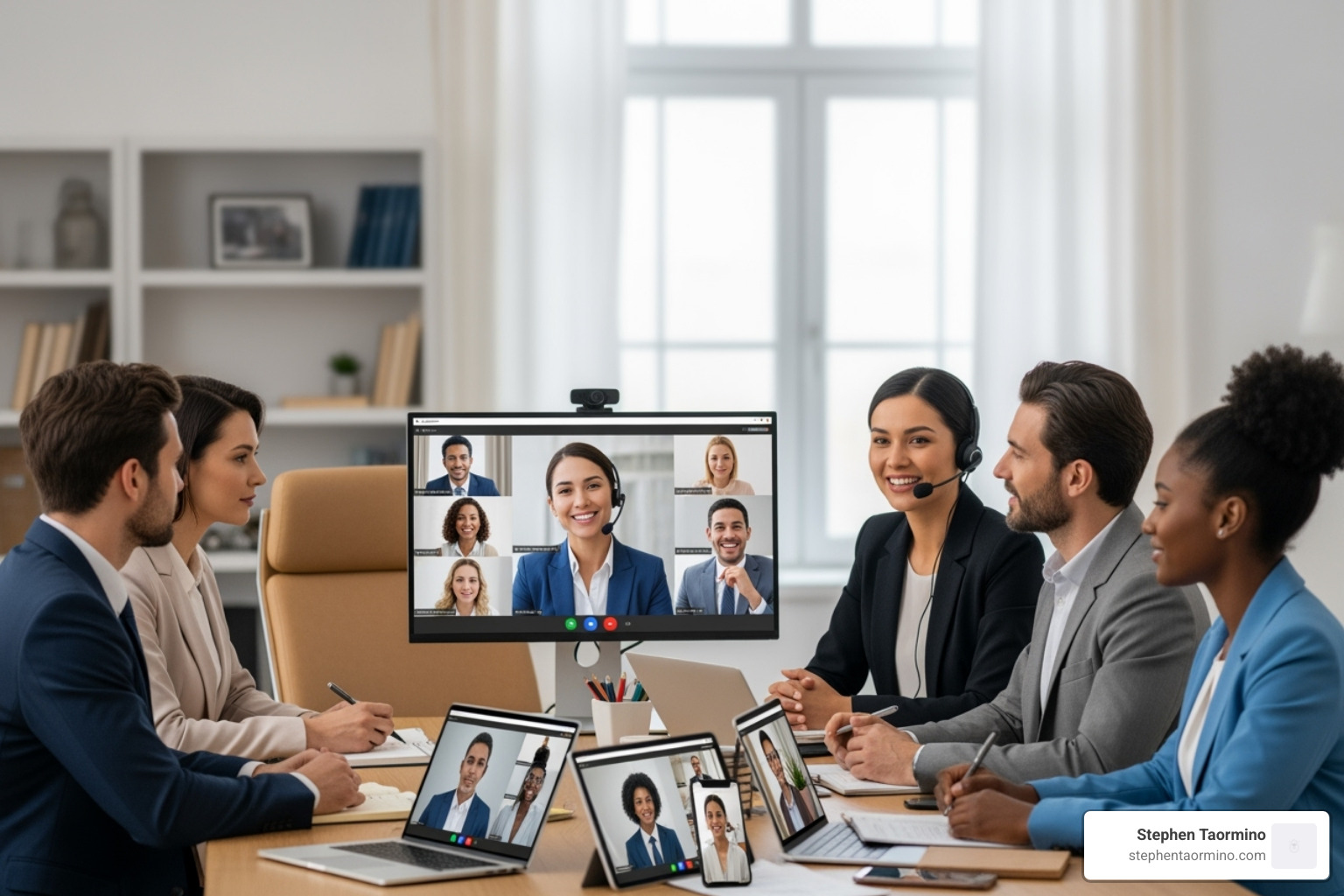
Presenting Like a Pro: Screen Sharing and Visuals
Your presentation is the heartbeat of your webinar. When you click “Present now,” you have three options:
- Your entire screen: Flexible, but be warned—all notifications and open tabs will be visible. Use with caution.
- A window: The safest and most common option. It lets you share a specific application, like PowerPoint or a document, while keeping the rest of your desktop private.
- A tab: Best for presenting Google Slides or playing a video from a Chrome tab, as it optimizes for video and audio quality. When presenting Slides this way, you can often use Presenter View to see your notes while the audience only sees the main slide.
To avoid the disorienting “infinite mirror” effect, never share the Google Meet window itself. Stick to sharing a specific window or tab.
Engaging Your Audience with Interactive Tools
Engagement transforms passive viewers into active participants. Use Google Meet’s built-in tools to create a dynamic experience:
- Q&A: (Business Standard and higher) This feature lets you manage audience questions in an organized way without interrupting your flow. Attendees can submit and upvote questions for you to address at designated times.
- Polls: Use polls to break up your presentation, gauge understanding, and give your audience a voice. It’s a simple way to make the session feel more interactive.
- Breakout Rooms: For workshops or networking, you can split attendees into smaller groups for focused discussions.
- Chat: Encourage attendees to use the chat for comments and resource sharing. Assign a co-host to monitor it so you can focus on presenting.
- Reactions and Raised Hands: Simple emoji reactions and the raise hand feature allow for non-disruptive feedback and participation.
Customizing Your Setup and Ensuring Accessibility
A professional appearance and accessible content build credibility. Google Meet has several features to help:
- Visuals: Use a virtual or blurred background to create a professional setting. AI-powered features like studio look and studio lighting can automatically improve your video quality.
- Audio: Use noise cancellation to filter out background distractions. A quality headset or external microphone will ensure your audio is clear.
- Accessibility: Enable live captions to help those who are hearing-impaired or in a noisy environment. For global audiences, translated captions can make your content accessible in multiple languages.
Post-Webinar Power Moves: Follow-Up and Analysis
Your work isn’t over when the webinar ends. The post-webinar phase is where you convert a one-time event into lasting business value through strategic follow-up and analysis.
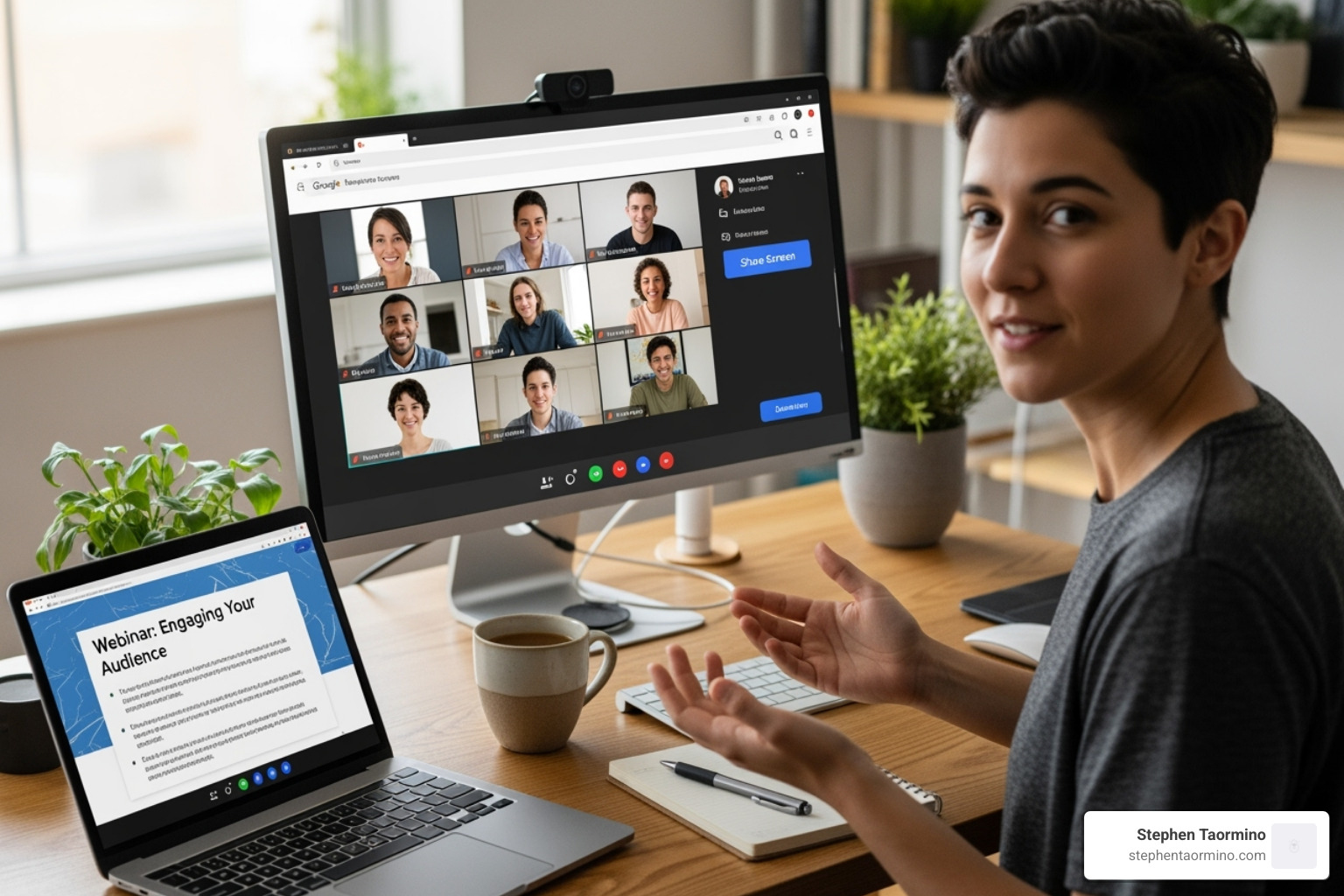
Recording Your Webinar and Sharing It Effectively
Recording your webinar is non-negotiable if you want to maximize its value. It allows you to reach those who couldn’t attend live and creates a content asset you can repurpose.
To record, click the “Activities” icon, select “Recording,” and click “Start.” Google Meet notifies all participants that the session is being recorded. When you’re done, remember to stop the recording. The video file is automatically processed and saved to a “Meet Recordings” folder in the host’s Google Drive, usually within a few hours.
When sharing, you can send the Google Drive link directly, but a better strategy is to upload the video to your website or YouTube channel. This transforms it into on-demand content that can generate leads long after the live event. Within 24 hours, send a thank-you email to all registrants with a link to the recording, key takeaways, and a clear call to action.
How to Track Attendance and Engagement
Understanding who attended and how they engaged is key to measuring success. Hosting a webinar on Google Meet with the right plan provides valuable data.
- Attendance Reports: For Business Plus and Enterprise plans, a report is automatically emailed to you after the event. It includes participant names, emails, and how long they stayed.
- Manual Tracking: On other plans, you can manually track attendees by keeping the participant list open during the session.
- Engagement Data: Analyze the questions from the Q&A and the results from your polls. This feedback provides direct insight into your audience’s interests and pain points.
Use this data to compare against your goals. Did you generate the leads you hoped for? What topics resonated most? This analysis will help you improve your next webinar.
Advanced Strategies & Troubleshooting for Hosting a Webinar on Google Meet
Once you’ve mastered the basics of hosting a webinar on Google Meet, you can explore advanced features to lift your events and prepare for any potential issues.
Reaching Massive Audiences with Live Streaming
When your audience exceeds the standard meeting capacity, live streaming is the solution. This feature is available on select Enterprise plans and is perfect for large-scale events.
- In-Domain Streaming: You can broadcast to up to 100,000 viewers within your own organization. This is ideal for company-wide announcements or large training sessions where broad reach is needed without direct interaction from all viewers.
- YouTube Streaming: For massive public events, you can stream your Google Meet webinar directly to YouTube, potentially reaching millions. This is best for product launches or major public announcements.
To set up a live stream, you simply add the “Live stream” option when creating your event in Google Calendar. You can also create a separate “view-only” event for the audience to make it clear they are joining to watch.
Securing Your Webinar and Managing Participants
Maintaining a professional and secure environment is critical. Use Google Meet’s host controls to stay in command:
- Co-hosts: Assigning co-hosts (up to 25) is the best way to manage a large webinar. They can mute participants, manage the Q&A, and handle join requests while you focus on presenting.
- Mute All: Use the “Mute all” feature to eliminate background noise and keep the audio focused on the speaker.
- Control Access: Disable “Quick access” in your event settings. This forces all attendees to “knock” to join, giving you full control over who enters the room and preventing disruptions.
Troubleshooting Common Issues When Hosting a Webinar on Google Meet
Even with careful planning, technical glitches can happen. Here’s how to handle common problems:
- Poor Audio/Video: Check your internet connection (a wired connection is best). Close unnecessary applications and browser tabs. Ensure the correct microphone and camera are selected in Meet’s settings.
- Screen Sharing Fails: Make sure your browser has the necessary permissions for screen sharing. Try sharing a specific window or tab instead of your entire screen. A quick browser restart often solves the issue.
- Participants Can’t Join: Double-check that you’ve shared the correct meeting link. If “Quick access” is off, remind yourself to admit attendees from the waiting room.
- Recording Fails: Confirm your Google Workspace plan includes recording. Ensure you have enough storage space in your Google Drive. Remember to manually start and stop the recording.
Frequently Asked Questions
I get these questions all the time when helping organizations set up their virtual events. Let me address the most common concerns about hosting a webinar on Google Meet.
Does Google Meet have a dedicated webinar feature?
No, Google Meet does not have a button labeled “webinar.” Instead, it offers a powerful collection of features that you can combine to create a professional webinar experience. By strategically using its large meeting capacity, live streaming, Q&A, polls, recording, and host controls, you can adapt the platform to fit your exact needs. This versatility is a key advantage over more rigid, dedicated webinar software.
What are the participant limits for a Google Meet webinar?
The participant limit depends entirely on your Google Workspace plan. Here’s a quick breakdown:
- Free: Up to 100 participants.
- Business Standard: Up to 150 participants.
- Business Plus: Up to 500 participants.
- Enterprise: Up to 1,000 interactive participants.
For view-only audiences, Enterprise plans support live streaming for up to 100,000 internal viewers. This scalability allows you to start small and grow your audience without switching platforms.
How do I record a webinar in Google Meet?
Recording is a feature available on Business Standard and higher plans. To start a recording, click the “Activities” icon (three shapes) in the bottom-right corner of your meeting screen, select “Recording,” and then click “Start recording.” All participants are automatically notified. After you stop the recording, the video file is processed and saved to a dedicated “Meet Recordings” folder in the host’s Google Drive, making it easy to find and share.
Conclusion
Hosting a webinar on Google Meet is a strategic and cost-effective way to deliver professional virtual events. As we’ve explored, the platform’s power lies not in a dedicated webinar button, but in its versatile combination of features. From scheduling and promotion to live engagement and post-event analysis, Google Meet provides all the tools you need within a familiar environment.
By leveraging features like large meeting capacities, live streaming, interactive polls, and robust host controls, you can create engaging experiences that connect with your audience and drive results. This approach saves you from learning new software and allows you to maximize the tools your team already uses daily.
The key takeaway is that with strategic planning, you can transform Google Meet into a powerful webinar machine. It scales with your ambitions, from small internal trainings to massive public broadcasts, all while keeping your content and audience connection at the forefront.
By mastering these strategies, you’re not just learning a tool; you’re developing a sustainable approach to virtual engagement. For deeper insights into the communication strategies that drive audience action, explore my expert resources. Find more expert video insights.