
Why Setting Up a Webinar on Zoom the Right Way Makes All the Difference
Setting up a webinar on Zoom is a strategic move that can transform your digital presence, allowing you to reach a global audience with the click of a button. In today’s hyper-connected world, the ability to host a professional, high-stakes digital event is no longer a luxury—it is a necessity for leaders, marketers, and educators alike. Whether you are launching a new product, conducting a high-level training session, or building thought leadership within your industry, the platform you choose and how you configure it will dictate the success of your engagement.
Here’s a quick overview of what the process looks like:
- Get the right license — You need a Zoom Webinar add-on (starts at ~$400/year for 100 attendees).
- Schedule your webinar — Log into the Zoom web portal, click “Webinars,” then “Schedule a Webinar.”
- Configure registration — Choose automatic or manual attendee approval.
- Invite panelists — Add them via the Invitations tab after scheduling.
- Run a practice session — Use the built-in Practice Session feature to rehearse before going live.
- Start your webinar — Click “Start,” then broadcast to let attendees in.
- Engage your audience — Use Q&A, polls, and chat during the event.
- Review analytics — Download attendee and registration reports after the event.
Most hosts run into trouble not because the software is hard, but because they skip steps — especially around licensing, registration setup, and pre-event rehearsal. This guide walks you through every stage so nothing falls through the cracks. The shift from physical to digital events has accelerated the need for mastery over these tools. When you host a webinar, you aren’t just giving a presentation; you are managing a complex digital ecosystem that requires attention to detail, from the initial invite to the final follow-up email.
Zoom webinars aren’t just for tech companies or large enterprises. They’re one of the most powerful tools available to leaders, executives, and marketers who want to reach and influence large audiences — without the cost of an in-person event. By removing geographical barriers, you can connect with prospects in London, partners in Tokyo, and employees in New York simultaneously. This scalability is what makes the webinar format so attractive for modern business growth.
But there’s a catch: the platform’s webinar tools come with more settings, roles, and options than most people realize. The difference between a polished, professional broadcast and a chaotic, off-brand experience almost always comes down to preparation. I’m Steve Taormino, President & CEO of CC&A Strategic Media, and with over 25 years in digital communications and marketing strategy, I’ve guided countless organizations through setting up a webinar on Zoom as part of broader audience engagement and brand-building efforts. In the sections ahead, I’ll break down exactly what you need to know — from licensing and scheduling to live engagement and post-event analytics.
Quick look at setting up a webinar on zoom:
Understanding the Prerequisites for Setting Up a Webinar on Zoom
Before we dive into the “how-to,” we need to ensure you have the right tools in your belt. One of the most common points of confusion we see at CC&A Strategic Media is the distinction between a standard meeting and a webinar. While they look similar, the underlying psychology and functionality are worlds apart. A meeting is designed for collaboration—think of it as a digital conference room where everyone has a seat at the table. A webinar, however, is a virtual auditorium. It’s a broadcast-style event where the host and panelists are the “stars,” and the audience is there to watch, listen, and engage through controlled channels like Q&A and polls.
Comparing Meetings vs. Webinars
| Feature | Zoom Meeting | Zoom Webinar |
|---|---|---|
| Primary Use | Collaboration & Discussion | Presentation & Broadcast |
| Participant Roles | All participants can talk/video | Host & Panelists only |
| Audience View | Can see other participants | View-only (can’t see others) |
| Capacity | Up to 1,000 (with add-on) | Up to 10,000+ |
| Engagement | Breakout rooms, chat | Q&A, Polling, Webinar Chat |
| Registration | Basic | Advanced tracking & branding |
For a deeper dive into these technical distinctions, you can review the Meeting and webinar comparison provided by Zoom Support. Understanding these differences is crucial because it dictates how you will interact with your audience. In a meeting, you might expect interruptions and dialogue. In a webinar, you are the authority figure, and the flow of information is primarily one-way, supplemented by structured interaction.
Hardware and Software Requirements
You wouldn’t walk onto a physical stage with a flickering microphone, and you shouldn’t host a digital event with a lagging connection. To ensure a smooth 1080p stream, we recommend the following hardware specs:
- Processor: At least a dual-core 2GHz processor (i5 or higher is better). Running high-definition video while simultaneously managing a slide deck and a Q&A panel requires significant processing power.
- RAM: 4 GB minimum, though 8 GB is the “sweet spot” for running multiple applications without system lag.
- Internet Speed: You need at least 2 Mbps upload and download speeds for high definition. We suggest checking your speed at Fast.com or Ookla Speedtest before going live. A wired ethernet connection is always superior to WiFi, as it eliminates the risk of signal interference.
- Audio/Video: Invest in a high-quality external microphone and a 1080p webcam. The built-in hardware on most laptops is insufficient for professional-grade broadcasts. Good lighting is also essential; a simple ring light can make a massive difference in how you are perceived by your audience.
Choosing the Right License
To begin setting up a webinar on Zoom, you must have a paid account (Pro, Business, or Enterprise) and then purchase the Webinar Add-on.
- Pro Plan: Supports up to 100 participants in meetings. This is the entry-level paid tier.
- Business Plan: Increases meeting capacity to 300 and offers additional administrative controls.
- Webinar Licenses: These are tiered based on attendee capacity. Prices range from roughly $400/year for 100 attendees to $64,900/year for 10,000 attendees.
If you are just starting out, the 500-attendee license is the standard choice for most growing businesses. It provides enough room for growth without a massive upfront investment. You can find more details on our webinars page regarding how these choices impact your marketing strategy and overall reach.
Step-by-Step Guide to Setting Up a Webinar on Zoom
Once your licensing is active, it’s time to build the event. We always recommend scheduling through the web portal rather than the desktop app, as the portal offers significantly more customization options and a clearer overview of your event settings.
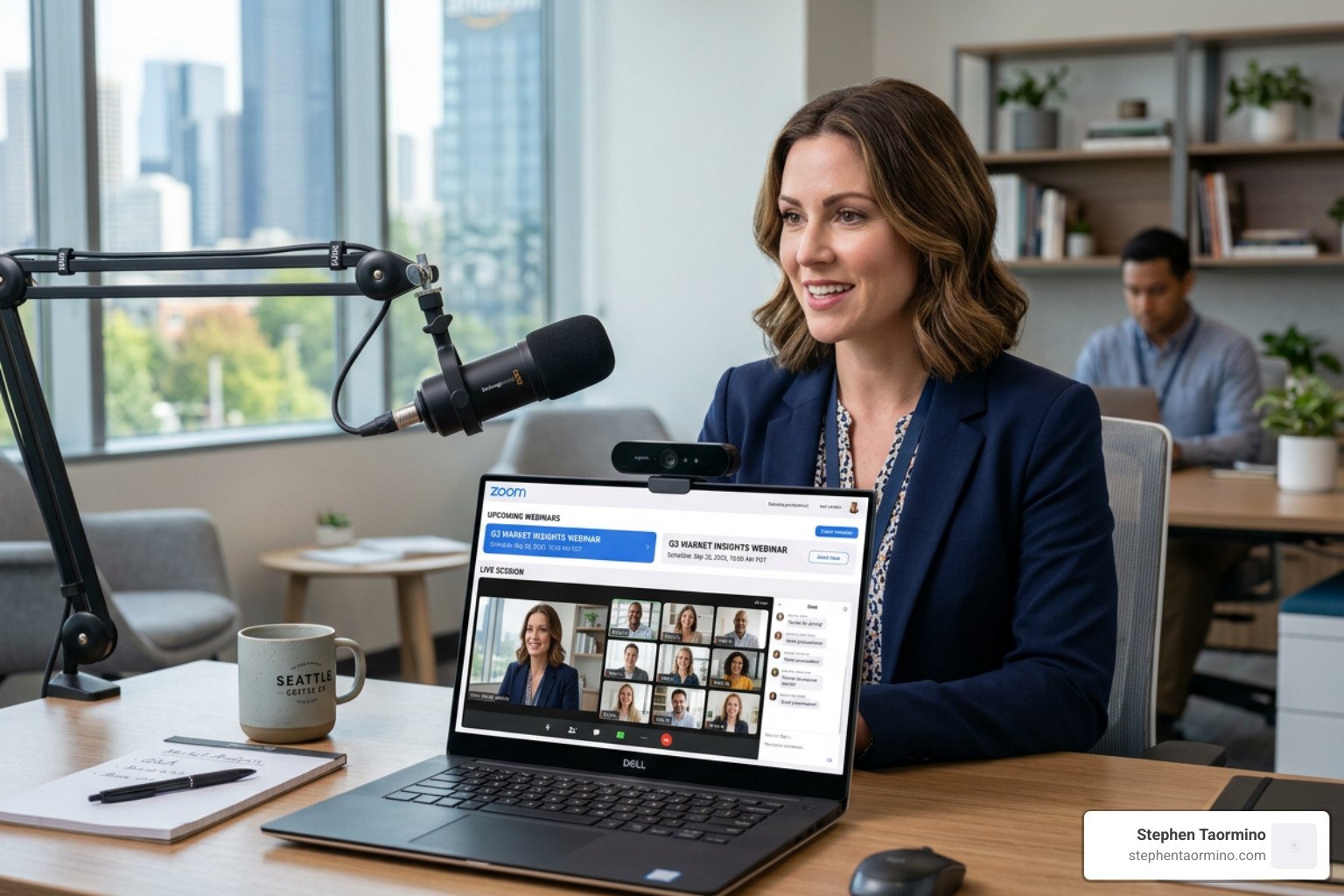
- Sign In: Navigate to the Zoom web portal and log in with your credentials.
- Navigate to Webinars: Click “Webinars” in the left-hand sidebar to see your upcoming and past events.
- Schedule: Click the “Schedule a Webinar” button to begin the configuration process.
- Fill in the Basics:
- Topic: Give it a catchy, benefit-driven title. Instead of “Product Demo,” try “How to Scale Your Revenue with Our New Platform.”
- Description: Use this space to sell the value of the event. Highlight the key takeaways and why someone should spend an hour of their day with you.
- Time & Duration: Be mindful of time zones! The system will default to your local time, but ensure it aligns with the majority of your target audience. For global events, mid-morning Eastern Time often works well for both European and American participants.
- Recurring Webinars: If you plan to host this weekly or monthly, check the “Recurring webinar” box. This allows attendees to register once for multiple sessions, which is excellent for training series or ongoing workshops.
Configuring Registration when Setting Up a Webinar on Zoom
Registration is your primary data collection tool. It’s where marketing psychology meets technical execution. You have two main choices:
- Automatic Approval: Anyone who signs up gets the join link immediately. This is great for maximizing attendance and reducing friction in the user journey.
- Manual Approval: You review each registrant before they receive the link. This is ideal for exclusive, high-ticket, or internal corporate events where you need to verify the identity of your attendees.
Within the registration settings, you can add custom questions. Don’t overdo it—asking for a phone number, job title, and company size might lower your conversion rate. Stick to the essentials that will help you qualify leads. For more on managing the role of the host, see our guide on being a webinar host.
Customizing Branding and Email Settings
A professional webinar should feel like an extension of your brand, not just another generic video call. After you save your scheduled webinar, scroll to the bottom of the page to find the Branding and Email Settings tabs. This is where you can truly differentiate your event.
- Branding: Upload a colorful banner (1280×256 pixels) and your company logo. You can also add “Speaker Bios” here, which appear on the registration page to build authority and trust with potential registrants.
- Email Settings: Customize the confirmation email. We recommend setting up reminders for one week, one day, and one hour before the event. This multi-touch approach significantly reduces “no-show” rates and keeps your event top-of-mind for busy professionals.
Mastering Panelist Management and the Virtual Green Room
In a professional webinar environment, there is a clear hierarchy of roles: the Host, the Co-Hosts, the Panelists, and the Attendees. Understanding these is vital to setting up a webinar on Zoom without a hitch. Each role has specific permissions that ensure the broadcast remains orderly and focused.
- Host: The person who scheduled the event. They have full control over the session, including the ability to start and stop the broadcast, manage recordings, and promote attendees to panelists.
- Panelists: Your guest speakers. They can share video, audio, and screens. They are the visible participants in the webinar.
- Attendees: The “view-only” audience. They cannot talk or show video unless the host specifically promotes them. Their interaction is limited to the chat and Q&A functions.
Managing Roles and Permissions while Setting Up a Webinar on Zoom
One of our top tips for digital transformation in communication is to assign at least one Co-Host. This person acts as your “producer.” While you are busy speaking and looking at the camera, your Co-Host can manage technical glitches, moderate the chat, and organize the Q&A queue. This allows the presenter to focus entirely on delivery without being distracted by administrative tasks.
You can invite panelists by clicking the “Edit” button in the Invitations tab. The system will send them a unique, personalized join link. Never share a panelist link with an attendee, as it would give them full control over the broadcast! For more tips on this, check out the best way to host a webinar.
Using Practice Sessions and Backstage
This is where the pros separate themselves from the amateurs. When scheduling, always enable the Practice Session feature. This creates a safe space for you and your speakers to prepare before the public is admitted.
When you start a webinar with a Practice Session enabled, you and your panelists enter a “Virtual Green Room.” You can see and hear each other, but the attendees are held in a waiting area where they cannot see or hear the preparation.
- The Tech Check: Use this time to ensure everyone’s lighting is good and their microphones are crisp. Check that slide decks are loading correctly and that any video clips have the “Share Sound” option enabled.
- The Broadcast Button: You will see an orange banner at the top of the screen that says “Practice Session.” When you are ready to go live, click Broadcast. Only then can the audience see and hear you. This transition should be seamless and professional.
If you have a higher-tier license, you might also have access to Webinar Backstage. This is an even more advanced version of the green room that allows panelists to move in and out of the “live” area during the event—perfect for large-scale productions with multiple segments and guest speakers who only need to be on screen for a portion of the event.
Optimizing Interactive Features for Maximum Engagement
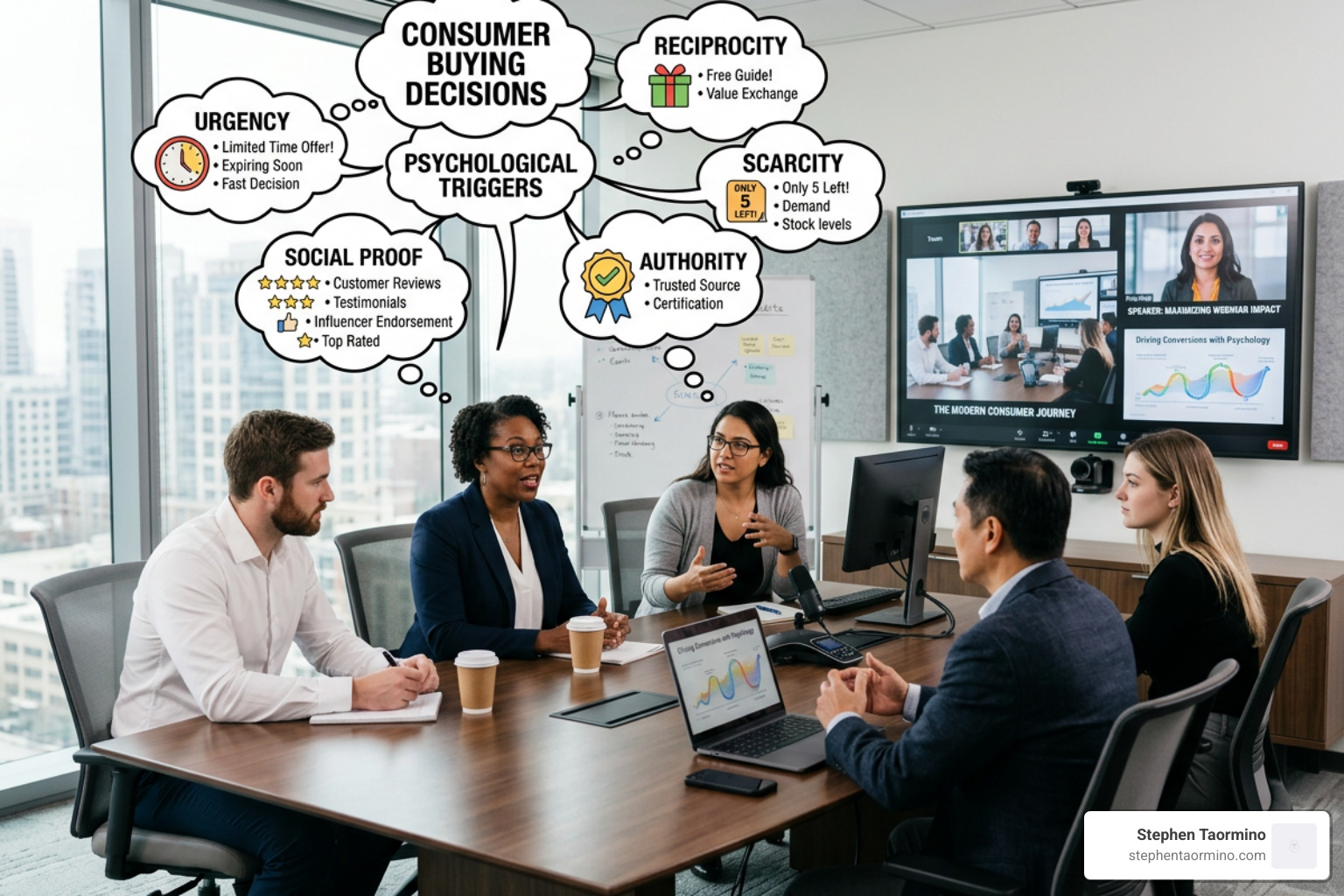
Engagement is the antidote to the “digital fatigue” we’ve all felt. When setting up a webinar on Zoom, you have four primary tools to keep your audience from tab-switching to their email. The goal is to create a two-way conversation, even in a broadcast format.
Interactive Features: Q&A, Polling, and Screen Sharing
- Q&A: Unlike the chat, the Q&A feature allows you to track which questions have been answered and which are still pending. You can allow anonymous questions and even let attendees “upvote” the questions they want answered most. This creates a sense of community and ensures the most relevant content is addressed.
- Polling: Create polls in advance to gather real-time data. They are great for “temperature checks” or gathering insights you can use to pivot your presentation. For example: “On a scale of 1-10, how confident are you in your current digital strategy?” This data can also be used in post-event marketing materials.
- Chat: You can restrict the chat so attendees can only talk to the host and panelists, or allow them to talk to each other. For high-energy events, open chat is great for building excitement; for formal presentations, host-only chat prevents distractions and keeps the focus on the speaker.
- Screen Sharing: Ensure your host settings allow panelists to share their screens. We recommend sharing a specific application (like PowerPoint or a web browser) rather than your entire desktop to avoid accidentally showing private notifications or sensitive information.
If you’re looking for ways to scale your reach without being live every time, you might also consider how to host pre-recorded webinars to maintain engagement and lead generation 24/7.
Security and Participant Management
Security is paramount in any digital event. While the platform has implemented many safeguards, you should still take precautions to ensure a smooth experience for everyone involved:
- Passcodes: Always require a passcode for registration. This adds an extra layer of security against unauthorized access.
- Mute on Entry: This is a default for attendees in webinars, but ensure your panelists are aware of their mute status. There is nothing more unprofessional than a hot mic during an introduction.
- Lock Webinar: If you want to prevent new people from joining after a certain point, you can lock the session from the “Participants” panel. This is useful for timed workshops or certification sessions where full attendance is required.
Post-Webinar Workflow: Recording and Analytics
The webinar doesn’t end when you click “End Meeting for All.” In fact, for a marketing firm like CC&A Strategic Media, that’s when the real work begins. The post-event phase is where you convert interest into action and data into insights.
Generating Performance Reports
Within 24 hours of your event, the system will generate several detailed reports. You can access these in the Reports section of the web portal. These reports are the key to understanding your ROI:
- Registration Report: Shows who signed up and how they found the link (if you used source tracking). This helps you identify which marketing channels are most effective.
- Attendee Report: Shows who actually showed up and, crucially, how long they stayed. This is vital for identifying your “hot leads”—those who stayed for the entire duration and engaged with the content.
- Q&A and Polling Reports: Provides a transcript of every question asked and the results of every poll. This is a goldmine for content creation; the questions your audience asks are the exact topics you should cover in your next blog post or video.
Use these analytics to fuel your follow-up strategy. Send a “Thank You” email with a link to the recording and a clear call to action (CTA). This is where the digital transformation of your sales funnel truly happens. By providing the recording, you extend the life of your content and reach those who registered but couldn’t attend the live session.
Frequently Asked Questions about Zoom Webinars
Can I host a webinar for free?
Technically, no. While the free version of the software allows for 40-minute meetings with up to 100 people, it lacks the specific “Webinar” features like Q&A, attendee management, and the broadcast/view-only distinction. To host a true webinar with professional controls, you need a paid license and the Webinar Add-on.
How many panelists can I have in a single session?
The platform supports up to 100 panelists in any webinar. However, only 49 panelists can be seen on screen at a single time in Gallery View. For most events, 3-5 panelists is the sweet spot for maintaining audience focus and ensuring a high-quality discussion without overwhelming the viewers.
What is the difference between a Practice Session and Webinar Backstage?
A Practice Session is a pre-event state where the host and panelists can talk before the “Broadcast” begins. It is a binary state: you are either in practice or you are live. Webinar Backstage is a persistent virtual space that exists during the live event, allowing speakers to huddle privately even while the main presentation is ongoing. This is ideal for complex events with multiple speakers rotating on and off the digital stage.
Can I stream my webinar to social media?
Yes, you can live stream your webinar to platforms like YouTube and Facebook. This is a great way to increase your reach and engage with an audience that may not have registered for the event. However, keep in mind that social media viewers will not be able to participate in the Zoom-specific Q&A or polls.
Conclusion
Setting up a webinar on Zoom is about more than just clicking a few buttons; it’s about creating a platform for leadership, connection, and growth. By mastering the technical prerequisites, perfecting your scheduling, and leveraging interactive features, you transform a simple video call into a powerful brand experience that resonates with your audience long after the session ends.
At CC&A Strategic Media, we believe that smarter communication is the key to building prosperity. Whether you are leading a global team, launching a new product, or educating your industry, your ability to command a digital stage is a vital skill in today’s economy. The tools are at your fingertips; the success of your event depends on how you choose to use them.
Ready to see these principles in action? Explore more expert speaking and video services here.